> For the complete documentation index, see [llms.txt](https://docs.nuvens.cloud/llms.txt). Markdown versions of documentation pages are available by appending `.md` to page URLs; this page is available as [Markdown](https://docs.nuvens.cloud/install/installation-prerequisites/cloudwatch-log-group-and-eventbridge-rule.md).
# CloudWatch Log Group & Eventbridge Rule
{% hint style="success" %}
The **CloudFormation template** for **WorkSpaces Manager** in the **AWS Marketplace** automatically creates an **EventBridge Rule** and a **CloudWatch Log Group** in the same region where the appliance is deployed. The default **CloudWatch Log Group** is called: **"/aws/events/WorkSpacesAccessLG"**
{% endhint %}
**Amazon EventBridge** is a serverless event bus service that allows you to respond to changes in your AWS environment or applications. It helps you build event-driven architectures by capturing real-time data from various AWS services, custom applications, or SaaS providers, and routing that data to different targets.
**Amazon CloudWatch Logs**, a service that collects, monitors, and stores log data from AWS resources, applications, and services. A **Log Group** is a container for logs, grouping together logs from similar sources, such as specific applications or AWS services. Within each Log Group, logs are organized into **Log Streams** (individual log files).
EventBridge can send event data to **CloudWatch Logs** for storage and analysis. EventBridge Rules can collect specific insights for Amazon WorkSpaces that are not available through standard APIs.
## Multi-Region Deployment
When setting up **WorkSpaces Manager** to operate across multiple regions, it’s essential to have an **EventBridge Rule** linked to a **CloudWatch Log Group** in each region where WorkSpaces are deployed. The only caveat is that the **CloudWatch Log Group** must have the exact same name in every region: **"/aws/events/WorkSpacesAccessLG"**.
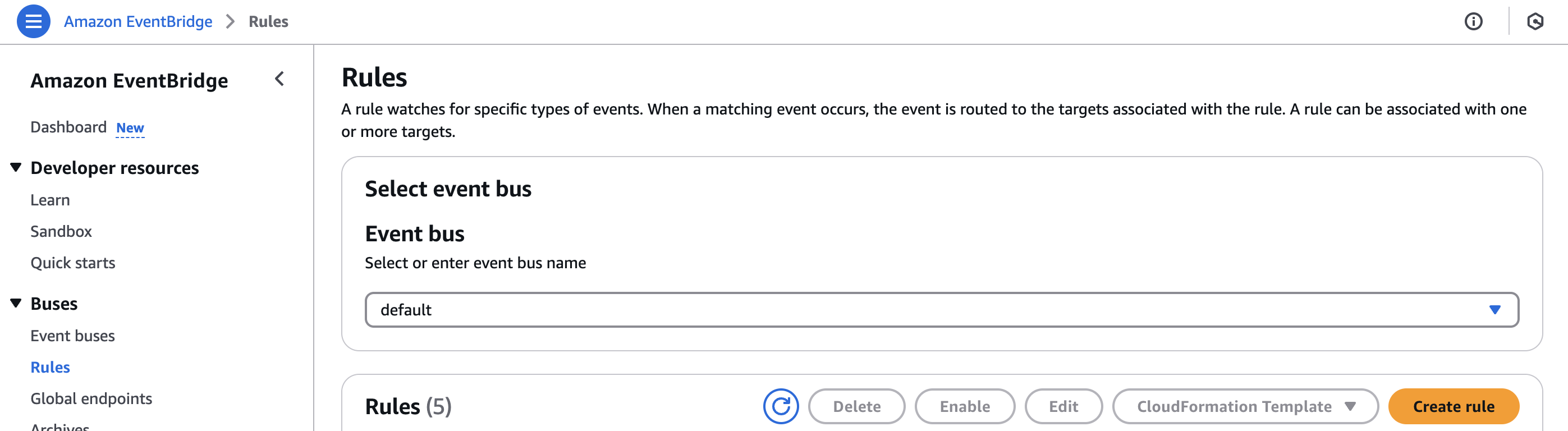
To create new **Rules** and a **CloudWatch Log Group** in a different region from where WorkSpaces Manager was deployed via the **CloudFormation template**, navigate to EventBridge. Click on "Buses" > "Rules":
Amazon Eventbridge
Click **"Create rule".**
Rules can be created in two different ways:
1. Visual Rule Builder (selected by default)
2. Standard (preferred)
We recommend switching off the "**Visual Rule Builder**". If needed, it can still be used by applying the same logic described below for the "**Standard view**". The process is then divided in 5 steps:
1. Define Rule Detail
2. Build Event Pattern
3. Select Target(s)
4. Configure Tags
5. Review and Create
In the **"Rule Detail"** section, add a **Name** and **Description** (e.g., **WorkSpaces\_Rule**) and leave the "default" configuration for the Event Bus, as displayed below:
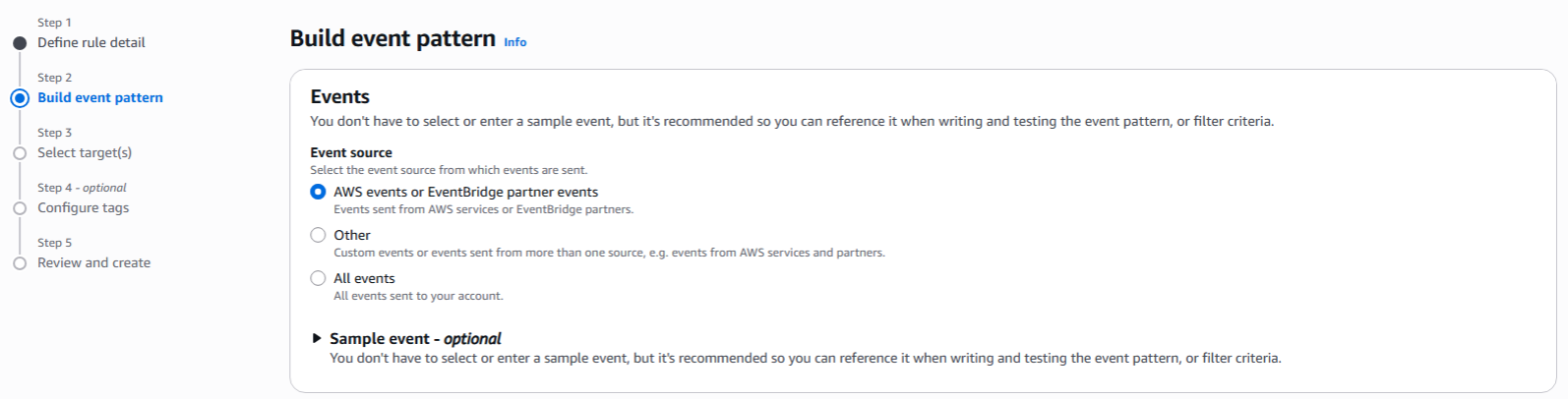
In the **"Events"** section, select **"AWS events or EventBridge partner events"**:
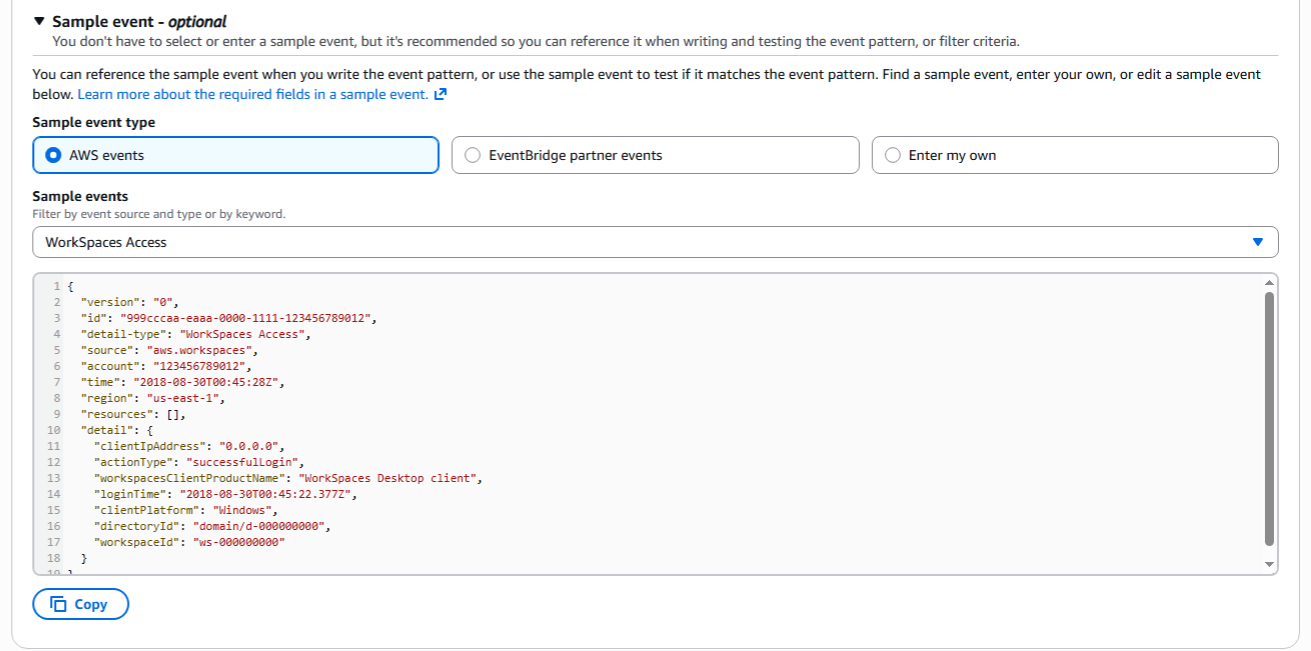
Below, in the **"Sample event - optional"** drop down, select **"AWS Events"** and search for **"WorkSpaces Access."**
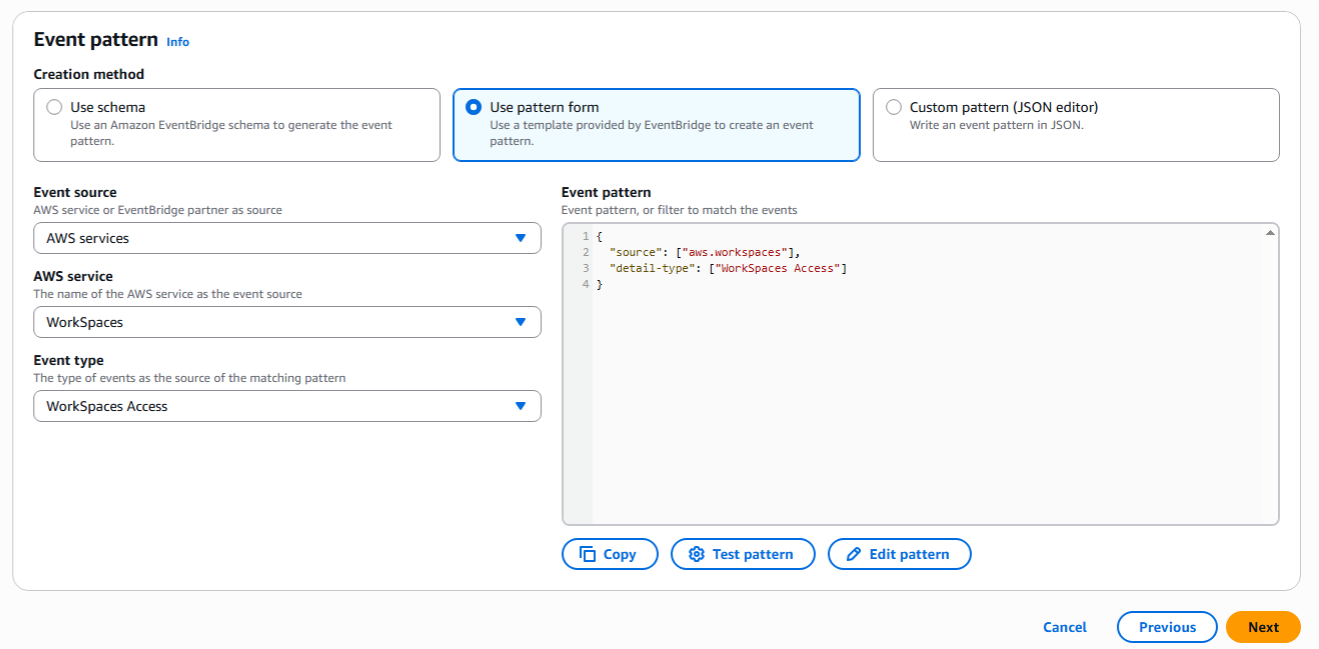
In the last step, under **"Event pattern,"** select the following options:
* **Creation Method: "Use pattern form"**
* **Event Source**: **"AWS Services"**
* **AWS Service**: **"WorkSpaces"**
* **Event Type**: **"WorkSpaces Access"**
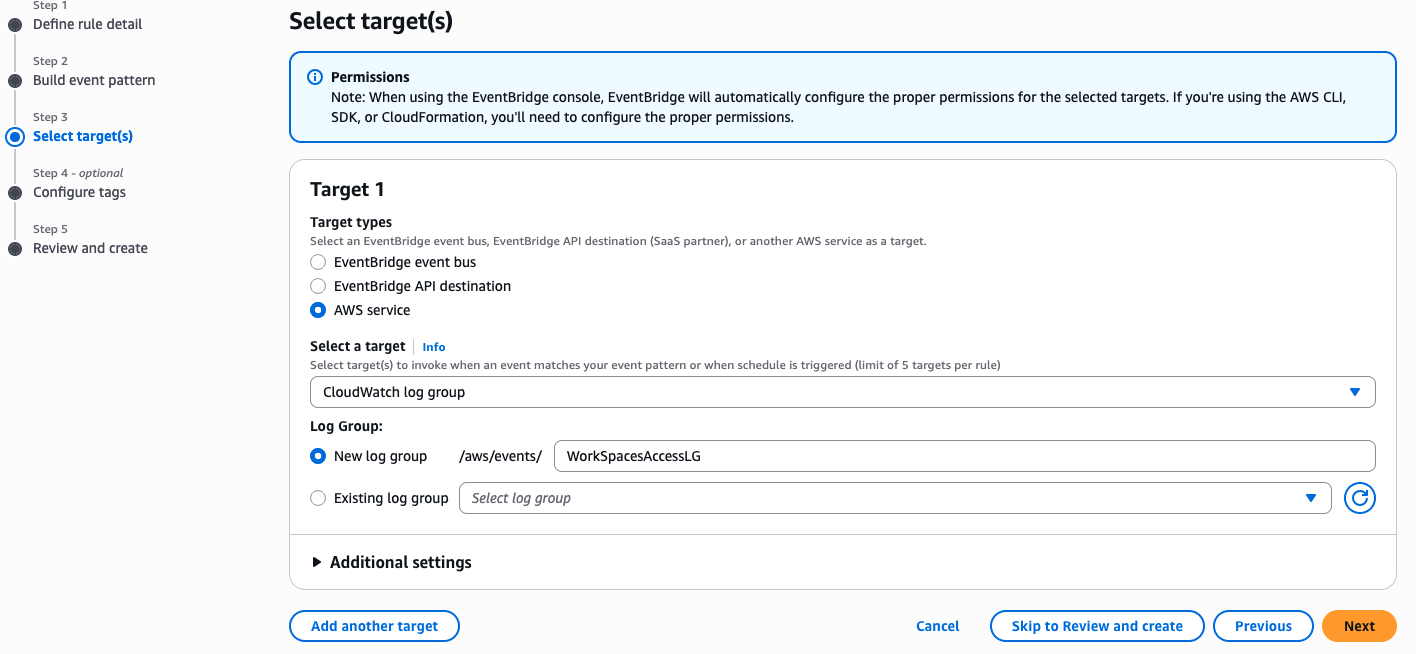
Click on **"Next"**. In the Select Target(s)s section, for **"Target 1"**, choose:
* Target Type: **"AWS Service"**
* Select a target: **"CloudWatch Log Group"**
* Log Group: **"/aws/events/WorkSpacesAccessLG"**
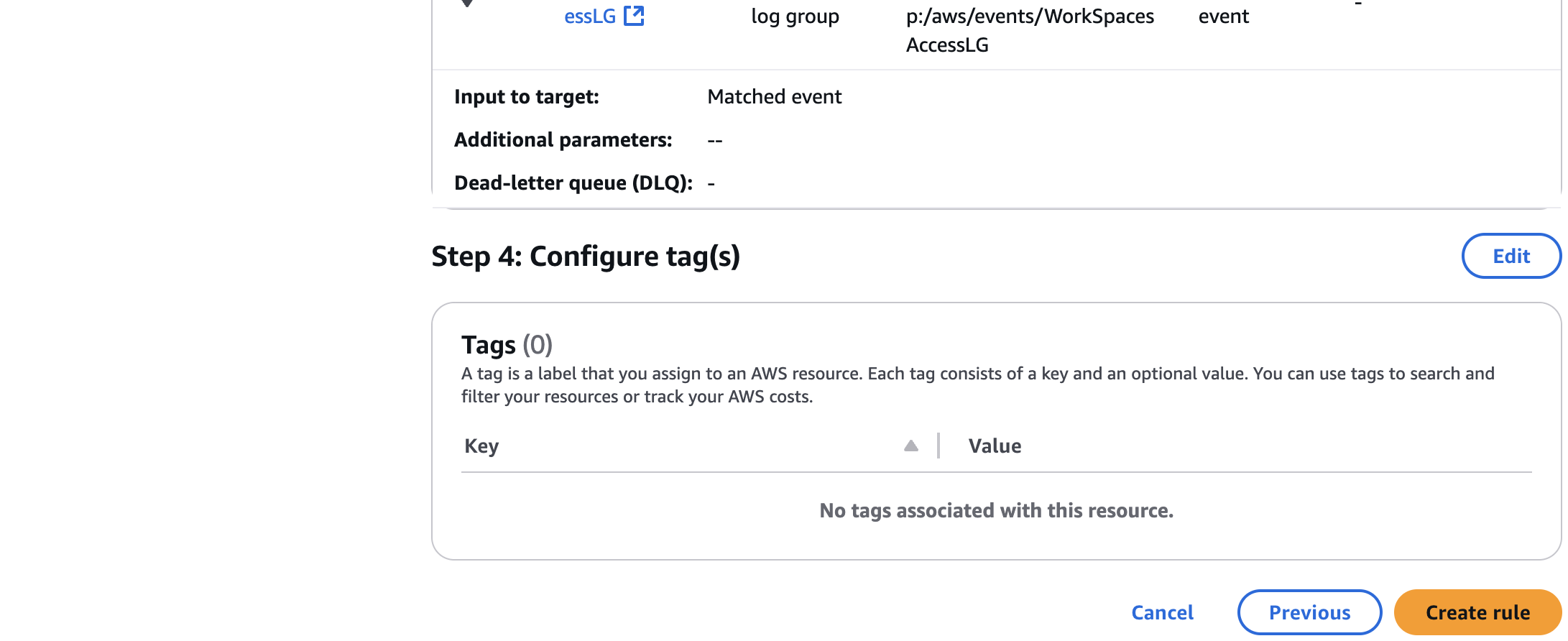
Configure the optional tags as required by your IT Policy.
And then review and create the rule:
A success banner should appear on top of the page.
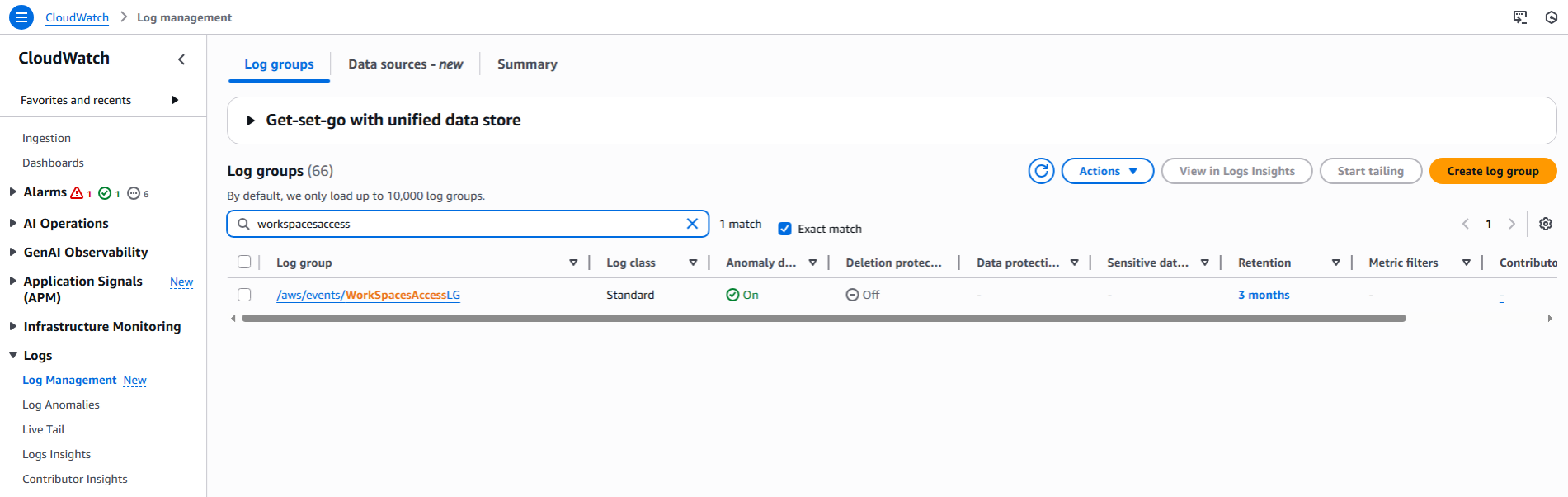
On CloudWatch, click on **“Logs”** > **“Log Management”** > confirm that the new log group exists.
Now, in WorkSpaces Manager, click on the **“Configuration”** drop-down, select **“Settings”**, and then **“Amazon Web Services”** Scroll down to the Account settings and select account, fill in the **“Access Log Group”** field with the following information: `/aws/events/WorkSpacesAccessLG`.
---
# Agent Instructions
This documentation is published with GitBook. GitBook is the documentation platform designed so that both humans and AI agents can read, navigate, and reason over technical content effectively. Learn more at gitbook.com.
## Querying This Documentation
If you need additional information that is not directly available in this page, you can query the documentation dynamically by asking a question.
Perform an HTTP GET request on the current page URL with the `ask` query parameter, and the optional `goal` query parameter:
```
GET https://docs.nuvens.cloud/install/installation-prerequisites/cloudwatch-log-group-and-eventbridge-rule.md?ask=&goal=
```
`ask` is the immediate question: it should be specific, self-contained, and written in natural language.
`goal` is optional and describes the broader end goal you are ultimately trying to accomplish on behalf of the user. GitBook uses it to tailor the answer towards what is most useful for that goal.
The response will contain a direct answer to the question and relevant excerpts and sources from the documentation.
Use this mechanism when the answer is not explicitly present in the current page, you need clarification or additional context, or you want to retrieve related documentation sections.






.png?alt=media&token=89481927-0a7b-4eeb-a53d-19f795a145f1)