> For the complete documentation index, see [llms.txt](https://docs.nuvens.cloud/llms.txt). Markdown versions of documentation pages are available by appending `.md` to page URLs; this page is available as [Markdown](https://docs.nuvens.cloud/admin/appendices/alternate-email-setup.md).
# Alternate Email Setup
**Alternate Email** can be configured in one of two ways: via **Active Directory** or by using a **tag**. When using **Active Directory**, you must first populate the alternate email address in the required AD attribute before configuring WorkSpaces Manager.
In **Active Directory Users and Computers**, ensure **Advanced Features** is enabled under the **View** menu to expose additional attributes.
Open the properties of the required user, navigate to the **Attribute Editor**, and select an attribute such as **msDS-cloudExtensionAttribute15**. Edit this attribute and enter the alternate email address.
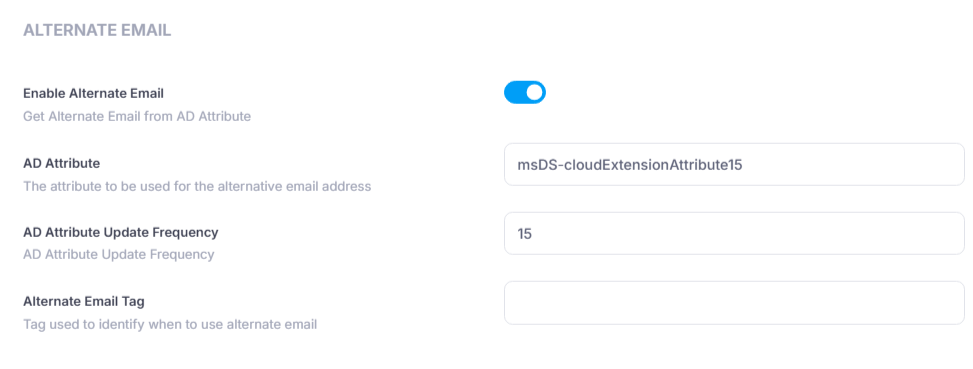
In **WorkSpaces Manager**, navigate to **Configurations > Settings > Email**. Enable **Alternate Email**, then specify the Active Directory attribute used (e.g. *msDS-cloudExtensionAttribute15*). Set the **Update Frequency** (default is 15 minutes).
{% hint style="info" %}
Emails are sent separately, meaning one email will be sent to the user’s primary address and a separate email will be sent to the configured alternate email address.
{% endhint %}
To use **Alternate Email** with a **tag**, disable **Alternate Email** (Active Directory), remove the **AD Attribute** and specify the **Alternate Email Tag** (for example, **Alternate Email**).
Navigate to **Configuration > Fixed Tags** and create a **Fixed Tag** using the same name as the **Alternate Email Tag** and leave **Fixed Tag Values** disabled.
Finally, navigate to the required **WorkSpace**, click the cog icon in the top-right corner, and select **Manage Tags**. Select the **Alternate Email** tag, enter the alternate email address as the **Tag Value**, and click **Save**.
---
# Agent Instructions
This documentation is published with GitBook. GitBook is the documentation platform designed so that both humans and AI agents can read, navigate, and reason over technical content effectively. Learn more at gitbook.com.
## Querying This Documentation
If you need additional information that is not directly available in this page, you can query the documentation dynamically by asking a question.
Perform an HTTP GET request on the current page URL with the `ask` query parameter, and the optional `goal` query parameter:
```
GET https://docs.nuvens.cloud/admin/appendices/alternate-email-setup.md?ask=&goal=
```
`ask` is the immediate question: it should be specific, self-contained, and written in natural language.
`goal` is optional and describes the broader end goal you are ultimately trying to accomplish on behalf of the user. GitBook uses it to tailor the answer towards what is most useful for that goal.
The response will contain a direct answer to the question and relevant excerpts and sources from the documentation.
Use this mechanism when the answer is not explicitly present in the current page, you need clarification or additional context, or you want to retrieve related documentation sections.




.png?alt=media&token=1f2221d8-c42d-4bec-a4d1-8c857d69fe7b)